

You can start selling on Amazon in just a few steps by creating a Seller Central account, choosing a selling plan, and verifying your identity. Open a seller account, pick Individual or Professional, provide your business and ID details, add payment info, and you’ll be ready to list products and manage orders through Seller Central.
This guide walks you through what Amazon needs to verify your identity, how to pick the right selling plan, and the exact steps to set up your account so you avoid common delays. You’ll also learn simple ways to optimize your store, handle fulfillment, and fix the usual issues new sellers face.
Once your account is live, don’t stop at organic sales, explore Amazon DSP to put your products in front of shoppers across and beyond Amazon.
Understanding Amazon Seller Central and Selling Plans
Amazon Seller Central is the online dashboard where you manage listings, pricing, orders, and payments. You’ll choose between two selling plans that affect fees, tools, and Buy Box eligibility.
Check out our Amazon UK & Europe Agency here
Seller Central Platform Overview
Seller Central is your control center for selling on the Amazon marketplace. You log in to create product listings, set prices, upload inventory, and track orders. The dashboard shows sales metrics, performance alerts, and customer messages in one place.
You also use Seller Central to access advertising, fulfillment options (FBA or self-fulfill), and reports for payments and taxes. Upload product images, add product IDs (UPC, EAN, or GTIN), and apply for Brand Registry from this interface. Permissions let you add teammates and control who sees reports or editing rights.
Use the dashboard to resolve policy issues, respond to buyer claims, and monitor metrics that affect account health and Buy Box eligibility.
Professional vs. Individual Accounts
Amazon offers two main selling plans: Professional and Individual. The Professional plan charges a monthly subscription fee. The Individual plan charges no monthly fee but adds a per-item selling fee.
Choose Professional if you list more than 40 items per month, want advanced selling tools, or need reports and API access. Choose Individual if you sell occasionally or fewer than 40 items, and want to avoid a fixed monthly cost. Both plans let you sell on Amazon and receive payments, but access to features differs.
Professional accounts can enroll in programs like advertising, bulk listing tools, and eligibility for the Buy Box. Individual accounts do not have those advantages, and they show a per-item fee on every sale.
Creating your account is just the beginning, running profitable ads is where most new sellers struggle. Check out the Best PPC Management Agency Rankings for 2026 before you launch your first campaign.
Professional and Individual Plan Benefits
Professional plan benefits include:
- Access to Seller Central advanced tools (inventory reports, advertising, and bulk uploads).
- Eligibility for the Buy Box when other performance criteria are met.
- Ability to use third-party integrations and the Amazon Marketplace Web Service (MWS) or Selling Partner API.
- Option to create a branded store and use Brand Registry if you own a trademark.
Individual plan benefits include:
- No monthly subscription cost, good for low-volume sellers.
- Simple setup through Seller Central for listing one-off items.
- Pay only the per-item fee plus referral and other selling fees.
Both plans let you use Seller Central to manage orders, respond to customers, and choose fulfillment methods. Fees beyond the plan (referral fees, FBA fees, and shipping credits) apply to both, so check fee schedules for your category and price points.
Choosing the Right Plan for Your Business
Decide by comparing expected monthly volume and needed tools. If you plan to list and sell over 40 units monthly, the Professional plan usually costs less and gives tools that save time. You gain access to bulk upload, detailed reports, and better marketing options.If you sell rarely or test a few products, the Individual plan lowers upfront cost. However, the per-item fee can add up if volume grows.
Also note the Buy Box favors sellers with strong performance metrics; being Professional helps but does not guarantee the Buy Box.Factor in fulfillment method: using FBA can increase Buy Box chances but adds fulfillment fees. Match the plan to your inventory size, desire for automation, and budget for recurring fees and advertising.
A stronger listing lifts conversions and sales velocity, which in turn improves your Amazon Best Seller Rank.
Essential Requirements for Registration
You will need specific personal, business, tax, and banking details to finish Amazon’s seller signup and verification. Gather clear ID, recent address documents, tax numbers, and a payment method before you start to avoid delays.
Required Documents and Information
You must provide a government-issued photo ID such as a passport or driver’s license. Use a high-quality color scan or photo that shows all four corners and legible text. Amazon often asks for a selfie or a live video call to match your ID as part of identity verification.
Also prepare proof of your residential or business address dated within the last 180 days, like a bank or credit card statement, utility bill, or lease. Keep your legal full name, date of birth, and contact phone number handy for the registration form. If you act for a company, have a signed authorization letter ready if you are not listed as a legal representative.
Business and Tax Details
Enter your business name exactly as registered with local authorities. If you operate as an individual, select the individual option and use your legal name. You will need your company registration number if your business is incorporated.
Provide tax information appropriate to your country. For U.S. sellers, you’ll complete tax identity info (SSN or EIN) through Amazon’s tax interview. Non-U.S. sellers must supply equivalent tax identifiers and may need to complete tax forms for cross-border sales. Be accurate: mismatched tax data can block account verification and payouts.
Bank Account and Payment Setup
You must add a bank account to receive Amazon payouts. The account should be in your name or your business’s name and accept deposits in the marketplace currency. Enter the bank’s routing/IBAN and the exact account holder name to avoid failed transfers.
Add a valid credit card (Visa, MasterCard, American Express, Discover, JCB, Diners Club) for fees and verification. The card does not always need to match the bank account name, but it must be active and able to process international charges if required. Amazon may also run small verification deposits to confirm account ownership.
Supported Countries and Eligibility
Amazon supports seller registration from many countries, but availability varies by marketplace. When you create a selling account from sell.amazon.com, you can sell in regions like the U.S., Canada, Mexico, and Brazil using one account, and create additional accounts for Europe, Asia-Pacific, or MENA as needed.
Check country-specific rules: some markets require local tax numbers, local bank accounts, or extra identity documents. If you have an existing Amazon Brand Registry, Vendor Central, or Ads account, use the same email to sync access. If you don’t meet a country’s eligibility, consider using Amazon’s Global Selling tools or a local service provider to bridge gaps.
Step-by-Step Amazon Seller Account Setup
You will pick a login, enter accurate business and personal details, upload payment and ID documents, and choose store settings that match how you plan to sell. Each step has specific fields and documents you must have ready to avoid delays.
Creating Your Login and Completing Seller Profile
Start at sell.amazon.com and click “Sign up” or use the Amazon Seller app to begin. Use an email not already tied to a different Seller Central account unless you need access to Brand Registry, Ads, or Vendor Central with the same address.
Create a strong password and enter your full legal name. Choose between an Individual or Professional plan—Individual has no monthly fee but charges per sale; Professional costs a monthly fee and unlocks bulk tools and advertising. Enter a primary contact phone number for verification. Set up two-step authentication for added security. Finally, complete your public seller display name (store name) that customers will see on listings.
Filling In Business and Seller Information
Select your business location and the legal business type: individual, sole proprietor, corporation, or nonprofit. Provide your registered business name exactly as shown on official documents, plus your company registration number if you have one.
Enter your business address and a bank account for payouts. The bank account must be in your name or your business name. Add a valid credit card, Amazon accepts Visa, MasterCard, American Express, and others, to cover fees. You will also be asked whether you are a brand owner, manufacturer, or reseller and to provide product identifiers (UPC, EAN, ISBN) or request GTIN exemptions when needed.
Verifying Identity and Address
Amazon requires a government-issued photo ID and proof of address dated within the last 180 days. Prepare a clear color scan or photo of your passport or driver’s license and a recent utility bill, bank statement, or lease that shows your name and address.
You may be asked to take a selfie with your ID or join a short video call with an Amazon associate. Follow image guidelines: show all four corners, avoid glare, and ensure text is readable. Amazon typically reviews verification within a few business days, but incomplete or low-quality uploads will slow approval. Keep copies of all documents in case Amazon requests replacements.
Finalizing Account and Store Preferences
After verification, sign into Seller Central to finish setup. Configure tax settings by entering your taxpayer identification (EIN or SSN) and completing any tax interview forms required for your marketplace. Link your shipping and fulfillment preferences: choose Fulfillment by Merchant (FBM) or enroll in Fulfillment by Amazon (FBA) if you want Amazon to handle storage and shipping.
Set your store details: logo, business description, return policy, and default shipping rates. Enable advertising and brand tools if you registered a trademark and enrolled in Brand Registry. Finally, list at least one product to test checkout, or use inventory templates to upload multiple listings. Check the Notifications tab for any remaining action items to avoid listing or payout holds.
Think the hard part’s over once your account is approved? Wait until you see how these 15 Viral TikTok Trends 2026 can fast-track your first sales.
Optimizing Your Seller Account for Success

Focus on clear listings, choose the right fulfillment method, protect and customize your brand, and use Amazon advertising to drive sales. Small changes in titles, images, and fulfillment choices can raise visibility and cut customer issues.
Not ready to manufacture your own products?
Explore Outsourced Production and get your first product made without lifting a finger.
Product Listing Basics And GTIN/EAN/ISBN
Create listings with a clear title (brand + key feature + size), 3–5 bullet points that state benefits, and a concise product description. Use high-quality images: at least one main image on white background and 4–7 additional lifestyle or detail shots. Include accurate product dimensions, weight, and material fields so shipping and fees calculate correctly.
Provide the correct product identifier: UPC, EAN, or ISBN (collectively GTINs). If your product lacks a GTIN, apply for a GTIN exemption in Seller Central. Use consistent keywords in back-end search terms and avoid repetition. Tools like Jungle Scout help find relevant keywords and match demand to product listings.
Keep variations (size, color) under one parent listing to consolidate reviews and improve buy box chances. Regularly check for listing hijacks or incorrect match-ups and fix them quickly.
Using Features Like FBA and FBM
Choose Fulfillment by Amazon (FBA) if you want Amazon to handle storage, packing, shipping, and customer service. FBA often improves Buy Box eligibility and Prime visibility. Account for FBA fees: storage, fulfillment, and long-term storage. Send inventory using Amazon’s shipment workflow and label items per Amazon’s requirements.
Use Fulfillment by Merchant (FBM) when you control shipping and want lower storage costs or handle oversized items. FBM can give you higher profit margins on low-volume SKUs. If you expect variable demand, consider a hybrid approach: use FBA for fast-moving SKUs and FBM for slow sellers.
Monitor inventory levels and set restock alerts. For FBA, follow Amazon’s prep and packaging rules to avoid removals or fees. Track returns and customer messages closely, regardless of fulfillment type.
Brand Registry and Customization Options
Enroll in Amazon Brand Registry once you have a registered trademark. Brand Registry gives you control over your product pages and access to tools that remove counterfeit or incorrect listings. You’ll be able to add enhanced content and control product titles and images more easily.
Use A+ Content (Enhanced Brand Content) to add comparison charts, images, and detailed copy. This improves conversion rates and tells shoppers why your product is different. Set up an Amazon Store to create a multi-page storefront that showcases collections and best sellers.
Use Amazon Custom if your products need buyer-provided text or options. This tool collects customization details at checkout and helps you avoid manual order handling errors. Keep branding consistent across listings, store pages, and packaging to build recognition.
Leveraging Amazon Advertising Tools
Start with Sponsored Products to promote individual SKUs. Use automatic campaigns to gather keyword data, then switch to manual campaigns for precise bids on high-performing keywords. Track ACOS (advertising cost of sales) and adjust bids to reach your target margin.
Use Sponsored Brands to drive brand awareness and link to your Amazon Store. Sponsored Display helps retarget shoppers who viewed your products. Test different creatives and headlines, and run A/B tests on product images and copy to see what converts.
Set daily budgets and monitor spend by campaign. Use placement adjustments for top-of-search bids on high-value keywords. Finally, export campaign reports weekly to spot trends and scale bids on profitable ASINs.
Common Issues and Pro Tips for New Sellers
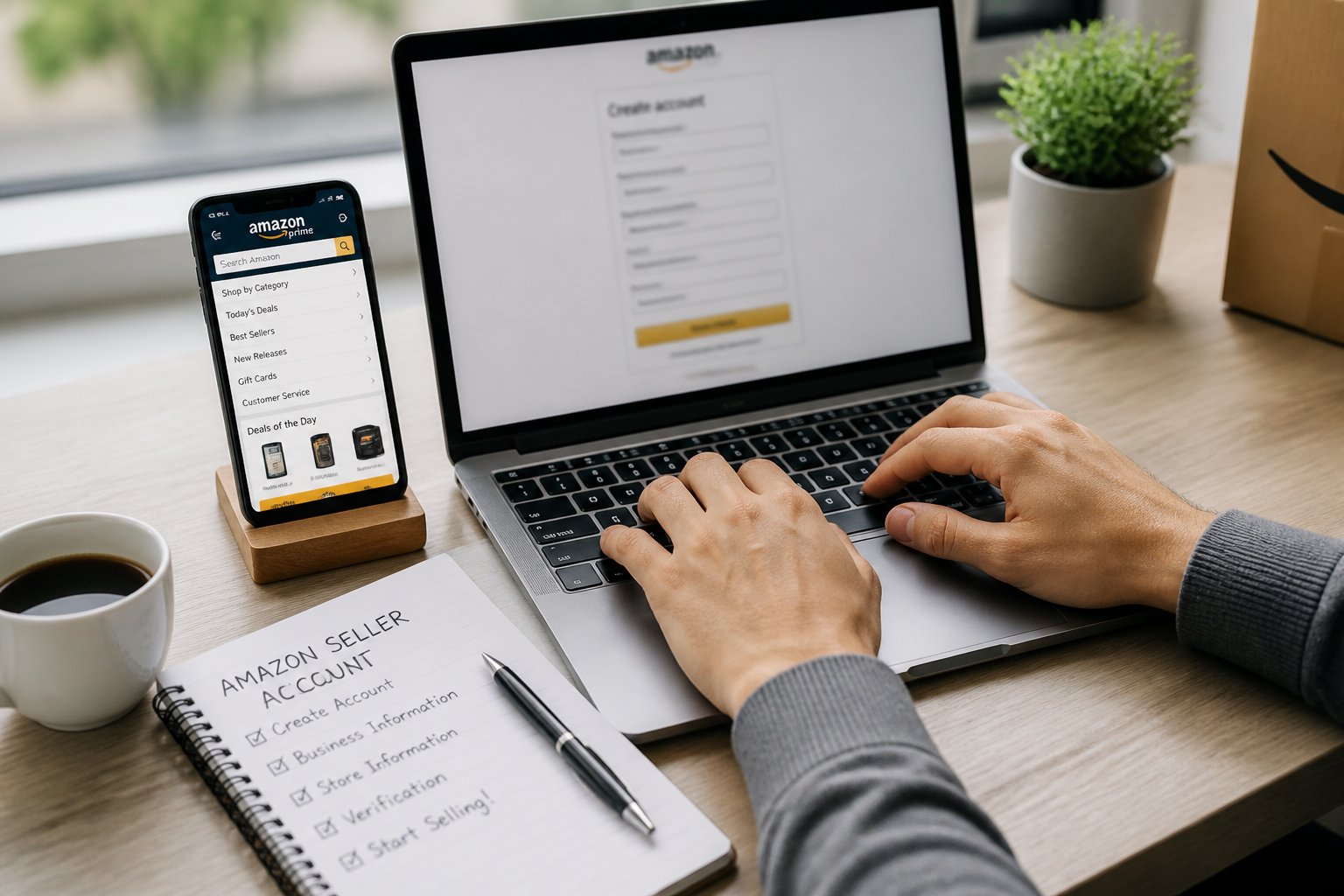
You will face identity checks, account health rules, and different country policies. Take clear steps to avoid delays, keep metrics in good standing, and follow marketplace rules to prevent suspensions.
Setting up your account is just step one, streamline your entire operation with the right SaaS tools built for Amazon sellers.
Check out our Amazon A+ Content Agency here
Avoiding Verification Delays
Upload high-quality scans of your government ID and a recent proof of address. Make sure images show all four corners, readable text, and matching names and addresses. If you use the Amazon Seller App to take photos, use good lighting and a steady hand.
Enter your bank and tax info exactly as it appears on official documents. Mismatched bank names or addresses are the most common cause of holds. If Amazon requests a video call, join on time with the same ID and paper statements you uploaded.
If verification stalls, check Seller Central dashboard messages daily. Respond to requests within 24–48 hours and attach clear files. For repeated rejections, contact Seller Support and reference the exact document name and upload date in your message.
Maintaining a Healthy Seller Account
Track your performance in Seller Central: Order Defect Rate, Late Shipment Rate, and Cancellation Rate matter. Set alerts in the Seller Central dashboard and use the Amazon Seller App for real-time order updates.
Use clear product listings and exact shipping times. For FBA, follow inbound shipment rules to avoid processing delays. For FBM, buy shipping insurance and keep tracking numbers accurate to lower disputes.
Keep financial records and sales invoices organized. If you get a policy warning, act fast: fix the listing, remove the problematic SKU, and upload proof in Account Health. Regularly run inventory audits and remove listings that violate brand or safety rules.
Understanding Multiple Marketplace Policies
Each country has its own rules for taxes, product approvals, and documentation. When you expand, set up local seller accounts or enable Global Selling tools so pricing and listings sync correctly across regions.
Check product ID rules (UPC, EAN, GTIN) and trademark needs for Brand Registry in each marketplace. Some markets require additional certifications or local language labels. Store names can vary by marketplace; keep them consistent but unique if needed.
Manage payments and bank accounts per marketplace: some require a local bank or specific currency settings. Use the Seller Central dashboard for each region to view fees, returns policy differences, and marketplace-specific buyer protections.
Frequently Asked Questions
This section lists the exact documents, choices, and steps you’ll need to register, verify, and start selling on Amazon. It also explains account plans, selling from outside the U.S., listing your first product, and how to close your account if you stop selling.
What information and documents do I need to register as an Amazon seller?
You must provide your legal name, business name (if any), business address, and phone number.
Have a government-issued ID (passport or driver’s license) and a recent proof of address (bank or utility statement).
If you run a registered business, include your company registration number and registered address.
You’ll also need a valid credit card and a bank account where Amazon can deposit your sales proceeds.
Amazon may ask for tax information like your Tax ID or Social Security number.
If you sell branded products, be ready to show brand ownership or permission to sell.
What is the difference between an Individual and Professional selling plan, and which should I choose?
Individual plan charges per-item selling fees and no monthly subscription.
Choose Individual if you expect to sell fewer than 40 items per month or if you want to avoid a monthly fee.
Professional plan charges a monthly subscription plus lower per-item fees and access to advanced tools.
Choose Professional if you sell many items, need bulk listings, use advertising, or want access to APIs and reports.
Compare expected monthly sales to the Professional subscription cost before you pick a plan.
You can switch plans later in Seller Central.
How do I verify my identity and set up payments and tax information in Seller Central?
Amazon will ask you to upload clear color scans or photos of your ID and proof of address.
You may need to take a selfie with your ID or join a short video call for live verification.
Enter a bank account that matches your name or business name to receive payouts.
Add a valid credit card for fees and billing.
Complete tax interviews in Seller Central to submit your taxpayer details.
Provide your Tax ID, Social Security number, or equivalent for your country as required.
Can I open a seller account in the USA if I live outside the United States?
Yes. You can create a U.S. seller account from many other countries.
You must supply a valid international ID, proof of address, and an international or U.S. bank account that Amazon accepts.
You may need to provide additional tax documentation for non-U.S. sellers, like a W-8BEN form.
Consider currency conversion, foreign bank transfer rules, and U.S. tax withholding when choosing your payout setup.
What are the first steps to create and publish my first product listing after registration?
Sign into Seller Central and complete your seller profile and shipping settings.
Choose product identifiers (UPC, EAN, ISBN) or apply for GTIN exemption if eligible.
Create a listing with a clear title, bullet points, and a plain product description.
Upload high-quality product images that meet Amazon’s image guidelines and set price and inventory.
Select fulfillment method: Fulfillment by Merchant (you ship) or Fulfillment by Amazon (FBA).
Review the listing for category restrictions and submit it for publishing.
How do I close or delete my Amazon seller account if I no longer want to sell?
In Seller Central go to Settings > Account Info and request account closure.
Make sure you cancel active orders, remove inventory, and resolve any account holds before you close.
Amazon may hold final funds for a settling period; check your payments report for pending disbursements.
Follow Amazon’s instructions and confirm the closure once you receive their confirmation notice.